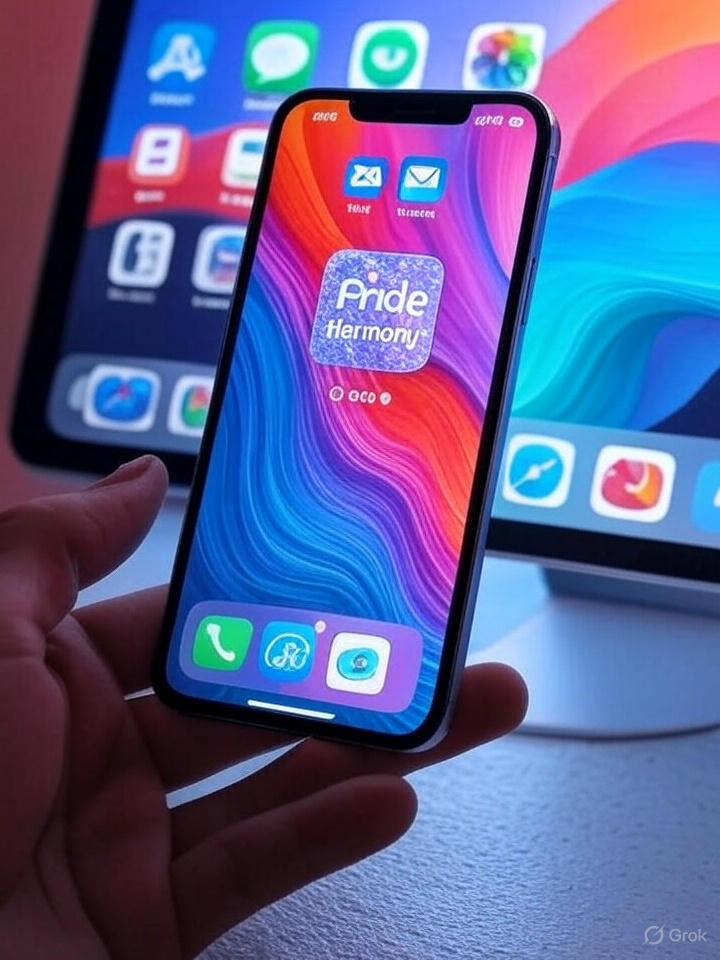
Installing a new iOS version is usually a quick background task — tap, update, restart. But iOS 18.5, though not a major update, introduced some subtle yet powerful improvements that made me rethink how I use my iPhone.
Instead of moving on, I spent some time exploring what had changed. Below are six simple steps I took after updating to iOS 18.5 — and why you should try them too.
1. Refreshed All My Apps — Compatibility Matters
After installing iOS 18.5, I immediately updated all my apps. New iOS versions can unlock enhanced features or performance boosts in third-party apps, especially those that rely on Apple’s APIs.
To do this:
- Open the App Store
- Tap your profile icon (top right)
- Pull down to refresh
- Tap Update All
How to manually update apps on your iPhone
2. Tweaked Apple Mail’s New Layout for Better Usability
Apple Mail got a few upgrades over recent iOS versions. With iOS 18.5, toggling Contact Photos became easier, and viewing all your mail — not just filtered categories — is now more intuitive.
To adjust:
- Open Mail
- Tap the ellipsis icon (•••) in the top right
- Choose Show Contact Photos on or off
- Swipe the Category row to find All Mail
Use Mail on your iPhone, iPad, or iPod touch
3. Re-enabled Back Tap — Now with Visual Confirmation
Back Tap used to feel like a guessing game. With iOS 18.5, a helpful banner confirms your tap was recognized. That made me turn it back on — and it’s now one of my favorite accessibility shortcuts.
To set it up:
- Go to Settings > Accessibility > Touch
- Scroll down and tap Back Tap
- Assign actions to Double Tap and Triple Tap
- Enable Show Banner if you want feedback
4. Set a Battery Charging Limit to Protect Long-Term Health
Excessive charging to 100% over time can degrade battery performance. iOS 18.5 lets you set a maximum charge limit — a feature previously only found on laptops and some iPads.
To adjust:
- Go to Settings > Battery > Charging
- Drag the slider to 80%, 85%, 90%, etc.
- Or turn on Optimized Battery Charging to let your iPhone learn your habits
iPhone battery and performance
5. Customized My Lock Screen with Apple’s New Pride Wallpaper
Apple’s Pride Harmony wallpaper celebrates inclusivity with shifting colors and a vibrant aesthetic. I swapped my background for this one — and it made my lock screen feel more alive.
To activate it:
- Tap and hold your Lock Screen
- Tap the plus icon to add a new wallpaper
- Scroll to the Pride section and choose Harmony
- Customize widgets, then tap Set as Wallpaper Pair
6. Did a Quick Settings Audit — Worth the Five Minutes
iOS updates often introduce behind-the-scenes changes. After updating to 18.5, I made a habit of scanning through:
- Privacy & Security
- Accessibility tools
- Notification and Focus settings
- Battery usage and background activity
A quick check ensured everything aligned with how I use my phone — and surfaced a few new features I would have otherwise missed.
Final Thoughts: Small Tweaks, Big Difference
While iOS 18.5 may not look like a huge update on the surface, it refines the iPhone experience in meaningful ways — from better email handling to smarter battery care and customization. Taking 10–15 minutes to explore these features made my iPhone feel more personal, responsive, and future-proof.
If you’ve updated already, don’t stop there. Dive into your settings, refresh your apps, and personalize your device — you might be surprised at how much better your phone works for you.
MUST READ:
Why the 2026 Toyota RAV4’s Hybrid-Only Shift Is a Game-Changer